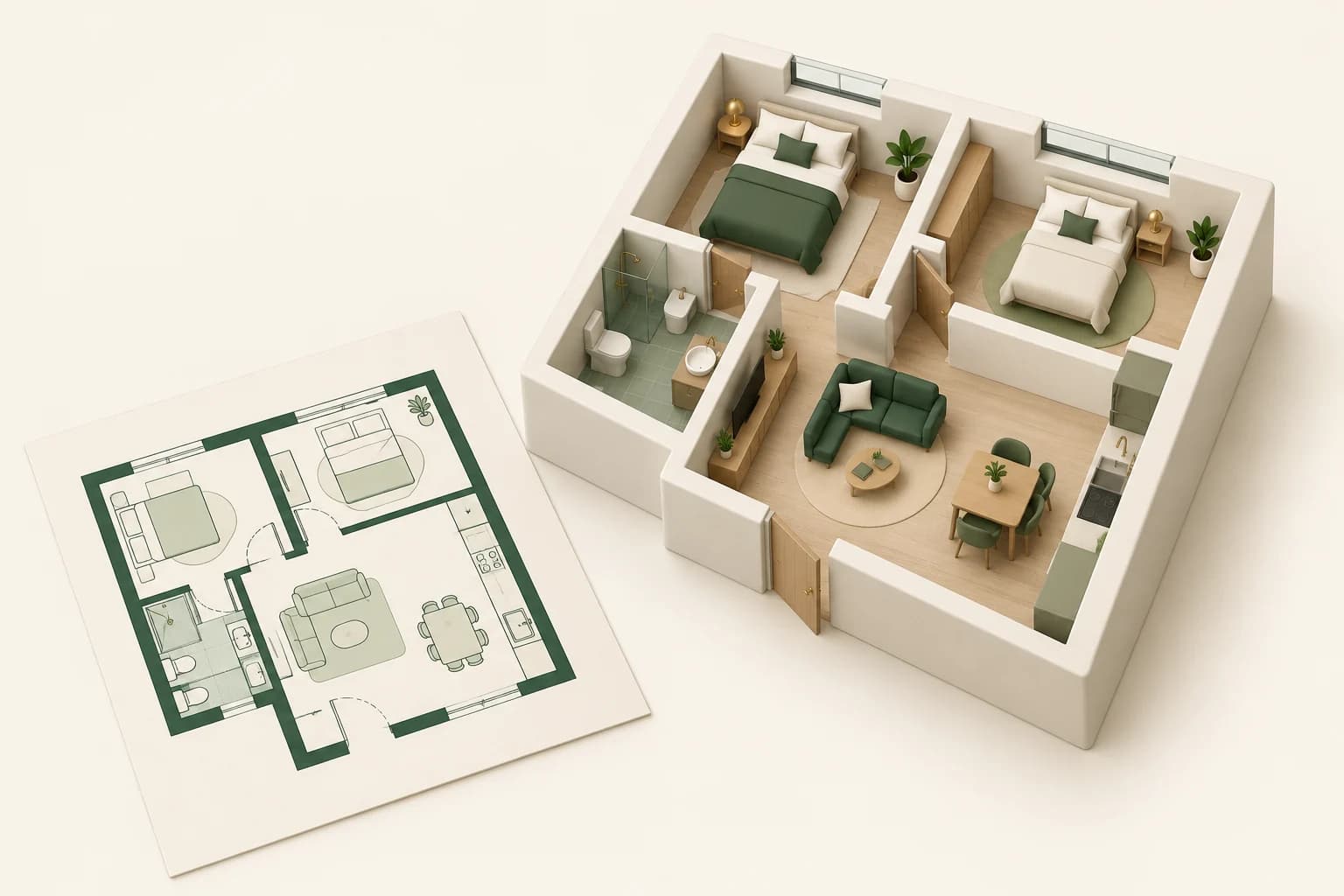
A buyer looking at a floor plan may understand the bedroom count but still struggle to picture the living area. Where could a dining table sit? How does the kitchen relate to the lounge? Which room might suit occasional guests?
A furnished 3D-style image can make those questions easier to discuss. For a development team, the useful approach is to show it alongside the approved plan, with a clear explanation of what is illustrative. The image supports the sales conversation; the drawing remains the source for dimensions and layout.
Use the correct drawing revision
Start with the current plan for the specific unit and level. Confirm the revision with the design team rather than using an old image from a brochure folder. Small differences in door swings or service cupboards can matter to a buyer's understanding of the space.
Prepare an image of one level with clear walls, doors and windows. Propviz accepts JPG, PNG and WebP images, not native CAD files or a multi-page PDF in this workflow. Export the relevant drawing to an image first. If your presentation is in SketchUp LayOut, its image export can produce JPG or PNG pages.
Keep the original dimensioned drawing separately. Removing a crowded title block from the input can help legibility, but do not lose the unit number and revision in your file records.
Choose the view that answers the buyer's question
Open 2D to 3D Floor Plan in Propviz. Review the detected room information before generating. Confirm that a store has not become a bathroom or that two connected areas have not been treated as unrelated rooms.
Use a whole-plan aerial or isometric view when the conversation is about the relationship between rooms. Use a room render when you want to discuss the character of one space. These are different views of a concept, not a guarantee of a geometrically consistent 3D model.
Propviz produces furnished visualisation images. It does not return an editable BIM model, a measured drawing or a navigable digital twin. If you need those deliverables, keep that work in the appropriate modelling workflow.
Keep the furnishing brief modest
A sales image should make the plan easier to read. Furnishing every wall and corner can obscure the circulation you are trying to explain. Start with simple pieces and a consistent palette across the unit.
Create a restrained contemporary furnishing concept for this apartment. Use light oak, warm neutral upholstery and a few muted green accents. Keep the plan layout and openings. Leave circulation routes visible. Show furniture as an illustrative arrangement, without adding rooms or changing their intended use.
Furniture in a generated image is not a fit test. If a buyer asks whether a particular sofa or dining table will work, use the product's dimensions against the measured plan. Do not infer clearance from the render.
Review the plan room by room
Put the source drawing and generated view side by side. Follow the route from the entrance and check each room rather than judging the image as a whole.
- Are the number and intended use of rooms correct?
- Are openings, balconies and circulation routes in the right places?
- Have utility spaces, structural elements or storage areas disappeared?
- Does the furnishing create a misleading impression of usable space?
Keep an issue list. Bluebeam's PDF markup tools can help the team record corrections against the source plan. Correct or reject a visual that changes important layout information; a small disclaimer is not a substitute for an accurate review.
Package the image with the evidence
Present the checked visual beside the current floor plan, not as a replacement for it. Include the unit reference, drawing revision and a plain caption such as “Illustrative furnishing concept; refer to the current dimensioned plan for layout and sizes.” Explain which furniture and finishes are illustrative rather than included.
Keep a shared presentation limited to the correct unit and approved assets. When the design changes, retire the old visual from the sales set and generate a new one from the updated source. Attractive images tend to get reused; revision control matters here as much as it does for drawings.
The best outcome is a more specific buyer conversation: a question about how a room could be used, followed by an answer checked against the actual plan. For the generation steps in more detail, see the floor-plan visualisation guide.